
Microsoft S 모드 해제 방법 – 해제는 무료이며 아주 간단합니다.
- PC에서 [설정] 앱을 엽니다.
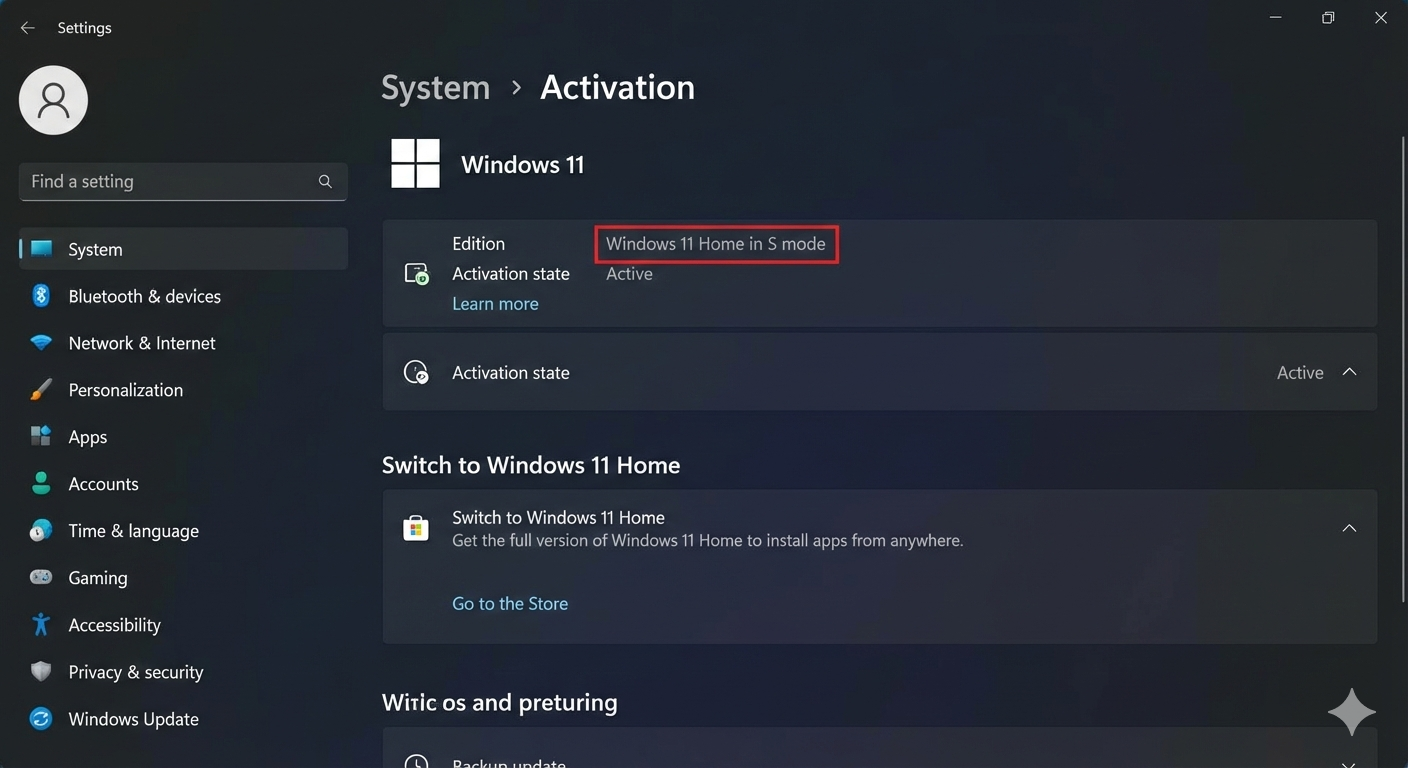
- 시스템 > 정품 인증 메뉴로 들어갑니다.
- ‘Windows 11 Home(S 모드)로 전환’ 섹션을 찾고, 그 아래에 있는 [Store 열기] 링크를 클릭합니다.
- Microsoft Store 앱이 열리면 ‘S 모드에서 전환(Switch out of S mode)’ 페이지에서 [다운로드/가져오기] 버튼을 누릅니다.
- 완료 메시지가 뜨면 이제 크롬 설치(또는 카카오톡 PC 용 등등) 파일을 실행할 수 있습니다.
Step-by-Step: Switching out of S mode
- Open Settings
- Press the Windows key on your keyboard and click the Settings icon (gear shape).
- Go to Activation
- On the left sidebar, make sure System is selected.
- On the right side, scroll down and click on Activation.
- Find the S mode section
- Look for a section titled Switch to Windows 11 Home (or Pro).
- Note: Do not confuse this with the “Upgrade your edition of Windows” section.
- Go to the Store
- In the “Switch to…” section, click the link that says Go to the Store.
- Get the Switch out of S mode app
- A Microsoft Store window will open with a page titled Switch out of S mode.
- Click the Get button.
- Confirmation
- After a few moments, you will see a message: “You’re all set! You’ve switched out of S mode and can now install apps from outside the Store.”
You must be logged in to post a comment.